"Android App Design Tips: Mastering Screen Sizes and Resolutions for Excellent App Development"
Are you interested in creating your own Android app without the need for coding? Look no further than AppMySite's Android app builder. This innovative tool allows you to create native and responsive apps effortlessly, ensuring a seamless user experience.
The Importance of Screenshots
When submitting your app to the Google Play Store, it's essential to include high-quality screenshots. It's recommended to submit at least 4 screenshots, each with a minimum resolution of 1080 pixels, to ensure high-definition clarity and quality. These screenshots should showcase the outstanding features of your app and adhere to Google's guidelines, using realistic screen images from within the app.
Designing for Android Screen Sizes
Android devices come in various screen sizes, ranging from small smartphones to large tablets. Popular screen sizes and resolutions include:
- Smartphones: Common screen sizes are 5.5" to 6.7" diagonals with resolutions like 2400×1080 pixels (Full HD+), often at ~400-500 ppi.
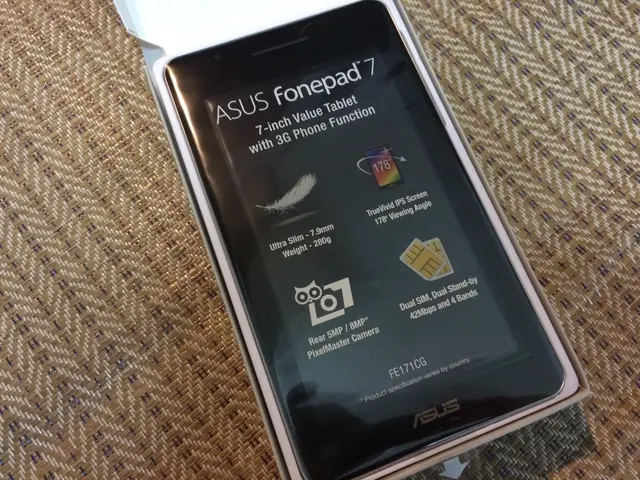
- Tablets: Sizes range from 7" to over 14" diagonals, with resolutions like 1920×1080 (Full HD), 2560×1600, or higher depending on the model and brand.
To design effectively for different Android screen sizes, follow these guidelines:
- Use Responsive Design Principles: Utilize flexible layouts and scalable UI elements that adapt to screen size and resolution.
- Consider Aspect Ratios and DPI: Design for the most common aspect ratios (16:9, 16:10, 18:9) and use density-independent pixels (dp) rather than raw pixels, to ensure consistent sizing across screen densities.
- Optimize Text & Touch Elements: Use sufficiently large fonts and clear, legible typefaces. Make buttons and links large enough for finger taps.
- Use Single-Column Layouts on Smaller Screens: To improve readability on mobile devices, display content in a single column where possible.
- Make Media Adaptive: Provide multiple image sizes and video aspect ratios depending on the device. For instance, vertical 9:16 aspect ratio videos work better on mobile devices, while horizontal 16:9 videos suit desktops.
- Keep File Sizes Reasonable: Optimize images and assets to reduce load times, especially important on mobile networks.
By following these guidelines, you can create an app that performs well on a wide range of Android devices. Happy app-building!
[1] Samsung Galaxy Tab S10 Ultra specifications: https://www.samsung.com/global/galaxy/tabs/galaxy-tab-s10-ultra/specifications/ [2] Mobile-friendly PDF best practices: https://www.adobe.com/design/resources/articles/mobile-friendly-pdf-best-practices.html [3] Android screen sizes and densities: https://developer.android.com/guide/practices/screens_support [4] Video aspect ratios for mobile devices: https://www.w3schools.com/html/html5_video.asp
- To showcase the financial growth potential of your Android app and its compatibility with modern lifestyles, utilize technology to create visually appealing screenshots that adhere to Android guidelines and highlight your app's features.
- Incorporate technology to design screens that smoothly adapt to the different screen sizes of Android devices, using principles like responsive design, aspect ratio considerations, and optimized media sizes, ensuring an enjoyable user experience across various devices and lifestyles.